

This plugin is no longer necessary for most users because similar functionality has been integrated into b2evolution's core. For more information, please see: Voting Options
This plugin allows your visitors to rate your posts using star ratings. By default they can rate the posts out of five stars, but it's easy to change that value in the backoffice plugin settings. Users with JavaScript enabled can vote without reloading the page using an AJAX call. The plugin works when JavaScript is disabled by the reader, too. By default, each vote is checked against a list of IP addresses to make sure that it's not a duplicate, but this can be disabled in the backoffice.
Installation
- Download the plugin, and unzip it.
- Copy the starrating_plugin folder into the "plugins" folder of your b2evolution installation.
- Login to the administrative interface for your blog.
- Install the Star Rating plugin from the Global settings->Plugins install->Install new->Available plugins table using the [Install] link.
- You should add the following code to the index.main.php file for any skin where you want the star ratings to be used.
Put this one in the post loop inside the bSmallPrint div or just below the post title:
<!-- codeblock lang=php line=1 --><pre class="codeblock"><code><?php $Plugins->call_by_code( 'starrating', array('id' => $Item->ID ) ); ?> </code></pre><!-- /codeblock -->
(Optional) If you want to show the top rated posts add the Star rating widget from Blog settings > Widgets. By default, it shows links to the top five posts, but you can change the 'limit' param to get different results. You can also edit the minvote setting so that a certain number of votes are required before an item can make it into the top rated list.
Usage
Once you have the plugin installed and the settings the way you want them, then go the write tab and create a post. If you want the post to have the rating system, then make sure that there's a check in the box next to 'Star Rating' in the 'Text renderers' section in the lower right.
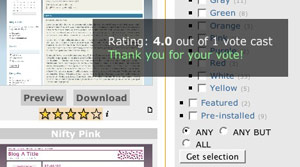
Now the stars should appear next to your post. To vote, click on the star you're voting for. If JavaScript is enabled, it will say 'Loading . . .', then display the new rating and thank you for your vote. If JavaScript is disabled, then the page will reload and the new rating will be shown.
Settings
Out of
Choose the number of stars possible. The default is five. It's best to only change this value right after installing the plugin. If there are already votes cast using another max value, then your results will be skewed if you change this value. Uninstall the plugin, then reinstall it to clear any old votes, then change the value.
Check IP
By default, each vote is checked against a list of IP addresses to make sure it's not a duplicate. You can disable the check using this setting.
Pop-up info
This option, which is enabled by default, displays details about a rating and notices (after you vote) in a JavaScript popup that fades in and then back out after 4 seconds. If you use this feature, be sure to place the additional skin tag (notice) just after your opening body tag (see above). This option requires a little more work to set up and requires that the user have JavaScript enabled, but it is more attractive and does not disrupt your site layout when someone votes.
Inline info
If you check this box, details about a rating and notices (after a vote) are placed just below the stars. This does not require the notice skin tag or JavaScript, but it may disrupt your site layout when someone votes. It is possible to use both of the info options at the same time, but it could be considered a bit redundant.
Apply rendering
This plugin doesn't really use a renderer, but it uses the renderer checkbox setting to know which posts should have the star rating available. Edit this plugin setting to set whether the checkbox is checked by default. For example, if you only want a few of your posts to have the rating system, then set 'Apply rendering' to 'opt-in'. Then, posts won't have the stars unless you check the box when you're writing a post. If you want all or almost all of the posts to have the rating system, then set the 'Apply rendering' in the plugin settings to 'opt-out'. Then, all posts will have the stars unless you uncheck the box in the write tab.
Customization
Change star image
It's not hard to change the star image. First, download the default image and look at it. It's three stars stacked on top of each other. The top star is the empty version, the middle star is the hover version, and the bottom star is the normal one that shows the average rating. Create your new image to match this template, then upload it to the /starrating_plugin/ folder. Then, edit the stars.css file to match your new file name. If your image has a width that's different than 20px, then you'll need to edit the two lines toward the top of stars.css that set the width. Then edit _starrating.plugin.php and find "var $width = 20;" and edit the value
Known issues
This plugin uses the prototype + scriptaculous library, but b2evolution is supposed to use jquery. This could cause an incompatibility. The next major version of this plugin will be built with jquery.
32 comments
Comment from: Arturo Visitor

Comment from: Arturo Visitor
Forget my last comment, it was my fault, so just to say GREAT PLUGIN!
Thanks
Comment from: arturo Visitor
Hi again,
On IE before cast a vote the info icon appears broken and after vote it looks good.
Comment from: Nelson Guirado Visitor

Great work. Perfect!
Comment from: Charles Visitor

Hi,
Great plugin !
I still have problems with IE but
I had to miss something.
Keep suporting,
Thanks
Comment from: Darryl Visitor

It would be a better plugin if it worked on blog 1 (bloag all), what do you think?
Comment from: paul Visitor

the plugin seems to work great except the “top posts” sidebar dosent seem to work.
Can someone suggest how to fix this please?
Thanks!
Comment from: E. I. Sanchez Visitor

I’d like to make the stars smaller and to center them. Is this possible?
EI
Comment from: balupton Visitor

Would be great if this plugin would change a user who has already rated’s rating, instead of just showing a “you have already rated” dialogue.
Comment from: Jürgen Visitor

So etwas hab ich tagelang gesucht. Das Blog und die Plugins sind einfach ein traum. Danke Jungs für die tolle arbeit.
Man muss zum Glück das Rad nicht immer neu erfinden.
Comment from: elisa Visitor

I use this for check the important impression of my article, very nice.
Comment from: Timb Visitor

Great plug-in, I’m already using it. Thanks.
I have one question. Right now, the titles of the top rated posts are “stacking” on top of each other.
Is there a code or setting that will truncate the titles or space the top-rated posts based on title length?
Thanks again.
Comment from: Nicole Pereira Visitor

I don’t think this works with 2.0 :(
Comment from: Guitar Guy Visitor

This is hot! Thank you for the great plugin. Any way to move the popup to the left, it comes over the sidebar. Thanks Again.
Comment from: zerv Visitor

i got it to work on 2.0 alpha 1, just got to modify the items.main.php at the post section and the widget works fine.
Didnt get it to work on the sidebar yet…
Comment from: Nicole Pereira Visitor
yeah the sidebar totals is what I want. I got it to show in the posts though
Comment from: emin ozlem Visitor

i DO need this plugin… when will an update be available for 2.1 las vegas latest ?? anyone can adopt it to 2.1 ??
Comment from: Vin Visitor

After voting, shouldn’t the image change to reflect the rating average? It always shows no stars.
Comment from: Bart Visitor

I tried to get this going in the 2.3 version, but no luck at all.
Comment from: compakia Visitor

I dont know where _main.php located? plase help me to install this plugin.
Comment from: emin ozlem Visitor
guys, all those ’stackings’ ‘no image’ etc etc, issues are because of ‘your skin’s ‘li’ properties, and the plugin works even with the latest version (2.4.2) cheers
Comment from: thomas Visitor

I had no luck following the instructions where it says “Put this one in the post loop inside the bSmallPrint div or just below the post title:”
Using evoCamp, there is no bSmallPrint. I put it in on line 70, but it doesn’t work, can anyboldy help me?
Comment from: lorenza Visitor

I want use this in my corporate blog next week.
Comment from: BisouNourS Visitor

this is a very cool one
thanks!
Comment from: Alex Visitor

I noticed a lot of votes coming from bots crawling our site. It may be worth adding rel="nofollow” to the anchors rendered for each star link.
Great plugin!
Comment from: Alex Visitor
d’oh looks like I didn’t fully understand nofollow, disregard previous comment. When I dug in I did see your comment as well, going to see what it takes to implement that.
Comment from: Sergio Visitor

With evopress you shoud edit posts.main.php and add the line there (it was hard at the beginning).
Comment from: Mirko Visitor

Very Nice Plugin, i love IT!!!
Comment from: Marco Visitor

One of my favourite plugin.
Great !
Comment from: Luigi Visitor

Very Nice Plugin, i love IT!!!
Comment from: Carlo Visitor

Thank You, i like the plug in,
but we must hope that those who vote our blog will give us full stars, otherwise it would be counterproductive but it can be an incentive to write good post :)
Comment from: Karin Zick Visitor

Hi Danny,
in a further blog I have used your starrating-plugin. Now I wanted to download it again, clicked on the name of your plugin and came to a website with explanations about installing and other helpful instructions. The download-link there brought me to www.sourceforge, but the title of the zip-file there was “capture 1.8.."??? Is this really the correct file? Sorry for my bad Englisch (am a German girl, Bavaria)…
Many thanks for your answer and help!
Yours, Karin
Hi,
Great plugin, I was looking it for a long time.
By the way after install, the vote system works fine but not the AJAX effects, like info or vote confirmation. Any tip
You can check it on http://www.lacuchara.es
Thanks in advance.