
Powered by MediaWiki
Personal tools

Write tab

From B2evolution

Jump to: navigation, search

Contents

[edit] Select a blog

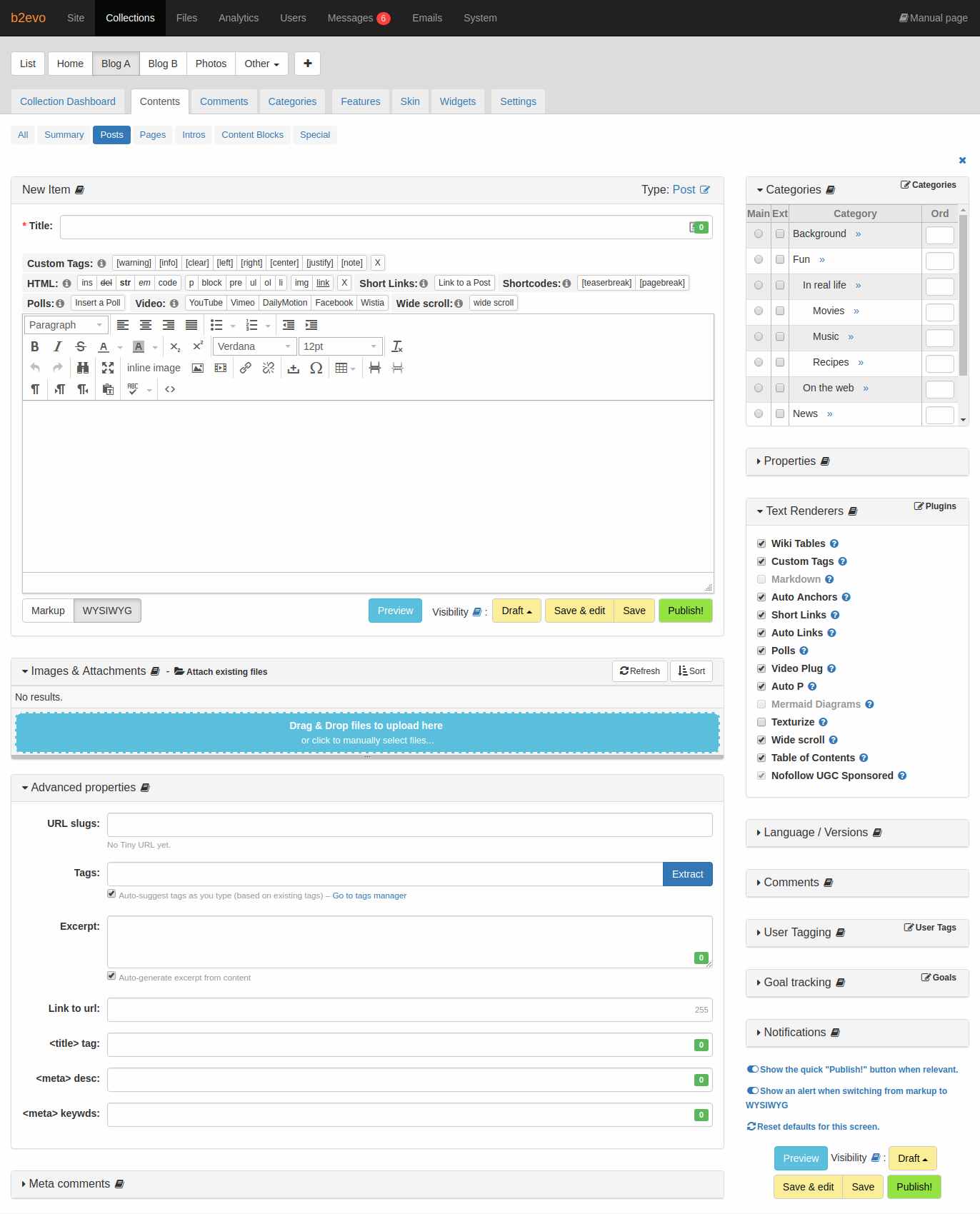
After clicking on the Write tab, you'll see a section at the top of the page labeled "New post in blog:" followed by a list of all the blogs you have permission to post to. The first thing you'll want to do is select the blog you want your new post to be published on.

[edit] Post contents

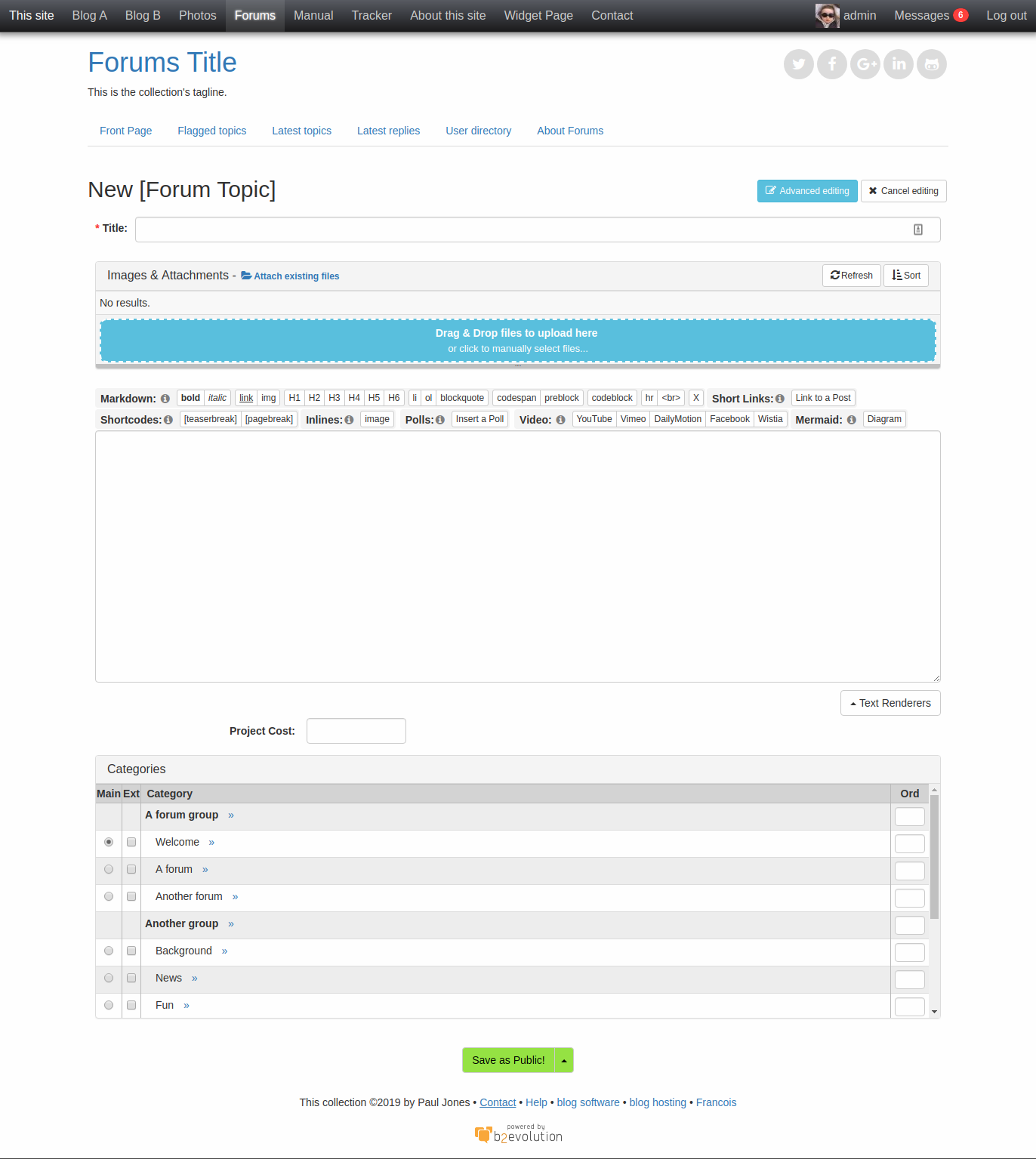
Next you'll see the "Post contents" section. The first field is for your post title. The field below that is labeled "Link to url:". You can add a web address here (don't forget the http://) and in your blog, the post title will become a link to this url. This is especially useful in a Linkblog, but it can and most often is left blank.

The big text area in the middle of the page is where you'll type the body of your post. There's a toolbar at the top of that area with some buttons for formatting. At the bottom you'll see the buttons for previewing and saving your post, and a button to call up the image uploading window.

Post contents fieldset

[edit] Advanced properties

Below the Save and Preview buttons you'll find the advanced properties section. If you want to change the date and time of your post, check the checkbox for editing the timestamp. Then adjust the date and time. This will affect where your post appears in your blog. Choose an old date if you want to bury a post. Choose a recent date to bring it toward the top. Choose a date in the future to hide your post until that time. This is useful if you're going to be away from your computer and you want to schedule some posts to appear while you're gone. Or write a post at work and schedule it to appear after you're home. Remember, your timestamp won't actually be changed unless you check the box.

You can also edit the url title, which is part of the permanent link for this post. The url title is normally created automatically by b2evolution. The software takes your post title, shortens it if it's too long and converts special characters (including spaces) to underscores. Normally, leave this field blank, but if you need to, you can specify or edit your url title here.

Post advanced properties fieldset

[edit] Categories, Renderers, etc.

On the right side of the page you can choose which category or categories the post will be assigned. Item categories fieldset

You will also see a list of installed plugins which can apply renderers to your post. You can opt in or out of these renderers as you need to. If you're not sure, just leave them as they are.

You can also select the status or visibility of your post on the right side.

[edit] Visibility / Sharing

[edit] Published (Public)

This is the default setting, meaning that the post will be visible on the blog and actually is posted.

[edit] Protected (Members only)

Your post will be published and visible, but it will only be visible to members of the blog you posted in.

[edit] Private (You only)

Your post will be published, but only visible to yourself (author of the post)

[edit] Draft (Not published!)

Your post will not be published, but is visible in the post list in the Dashboard

[edit] Deprecated (Not published!)

Your post may have been published in the past but is now retracted from the Published posts. The psot will still be visible in the posts list in the Dashboard. Only if you delete a post it will be gone.

[edit] Redirected

Redirected is a special case. If you moved a post to another blog or even to another install or a blog on another URL, you will find that the Permalink will be broken. With this option, applied on the 'old' post you can redirect to the new location. Old links and serchqueries will not notice the difference. Topanga wrote an example which can be found in the forums and in the article Use the Redirect option if the permalink is broken.